
How to Use a Chinese Keyboard? Your Questions Answered (PLUS a Bonus Freebie)
To type Chinese on any keyboard, add a Chinese input method (IME) in your device’s language settings, switch to it with a shortcut (Windows key + Space on Windows, Control + Space on Mac, or the globe icon 🌐 on mobile), type the pinyin of the word you want (e.g. nihao), then press Space to confirm the suggested character (你好).
Pinyin input works on your existing QWERTY keyboard: no special hardware needed.
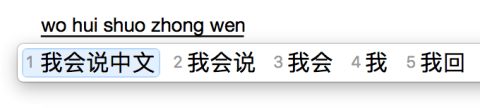
Below, we walk through the exact steps on Windows, Mac, iPhone, Android and Microsoft Word, plus alternative input methods like Wubi, Bopomofo and handwriting.
When you’re just starting to learn Chinese and getting familiar with the characters, it can be a daunting concept having to then type in Chinese characters and use a Chinese keyboard.
Let’s be honest, learning to type in Chinese characters is more practical than writing them out by hand.
However, we want to learn to write them as well! Otherwise your teacher will tell us off!
Learning how to type in Chinese opens up a world of possibilities, whether you’re communicating with native speakers, studying Chinese literature, or exploring the vast realm of online resources.
Chinese Keyboard: Chinese Pinyin
Chinese Keyboard: Mobile Phone
Chinese Keyboard: Choosing the Right Character
Chinese Keyboard in Microsoft Word
Other Chinese Input Methods // Beyond Pinyin

Whilst it may be scary at first, it won’t take long for you to get used to using a Chinese keyboard both on your laptop and on your mobile.
Especially if you’re using it often.
The more you use it, the quicker you will be and the more natural it will come to you
Get on those Chinese apps or chat with Chinese friends on WeChat to practice, and read our guide on how to enter characters on your smartphone to get the most out of it.
Chinese Keyboard: Chinese Pinyin
Honestly…
Typing in Chinese pinyin using a Chinese keyboard is pretty straightforward. REALLY!
Most Chinese learners will have learned the characters through the pinyin, so will know which letters of the alphabet build which sound.
There may be some instances, however, where you mix up a ‘q’ for a ‘ch’ or a ‘j’ for a ‘zh’, in which case you may not find the character you’re looking for. Brushing up on pinyin initials and finals will help you avoid these mix-ups and find the right character faster.
Usually though, the Chinese keyboard is pretty smart and will be able to detect what you’re trying to say.
Chinese Keyboard: Laptop
Windows and Apple are both pretty friendly nowadays when it comes to switching between different keyboards, much to the relief of the multilingual.
You simply need to add the keyboard to your device, and you’re ready to go!
Windows
Here’s how to add a Chinese keyboard on Windows 10 / 11:
- Press the Windows key, then open Settings (the gear icon).
- Go to Time & Language > Language & Region (Windows 11) or Language (Windows 10).
- Under ‘Preferred languages’, click Add a language.
- Search for Chinese, then select Chinese (Simplified, China) for Simplified characters or Chinese (Traditional, Taiwan) for Traditional.
- Click Next, keep the default features ticked, and click Install.
- Once installed, switch between languages with Windows key + Space.
TIP💡 You’ll see the language abbreviation (e.g. ENG or 中) in your taskbar. Click it anytime to switch input language without touching the keyboard.
Apple
Here’s how to add a Chinese keyboard on macOS (Ventura / Sonoma):

- Click the Apple menu () in the top-left corner and open System Settings.
- Select Keyboard in the sidebar.
- Next to ‘Input Sources’, click Edit.
- Click the + button at the bottom-left.
- Search for Chinese, then choose Chinese, Simplified (Pinyin) or Chinese, Traditional (Pinyin) depending on your needs.
- Click Add.
To switch between keyboards, press Control + Space (or use the Input Menu in the menu bar).
TIP💡 Pin the Input Menu to your menu bar (toggle it on in the same Keyboard settings screen) so you can always see which language is active.
The most frustrating thing you’ll come across is forgetting to turn your keyboard back to English.
Many a foreigner has suffered from forgetting to turn back to roman characters and finding a paragraph of work that looks something like this;
我很youforget头普通又热keyboardback头English。
(Should read: When you forget to put your keyboard back to English).

Chinese Keyboard: Mobile Phone
On any Android, Windows, or Apple iPhone, you can add a Chinese keyboard by heading into your settings, opening keyboards, and adding another language.
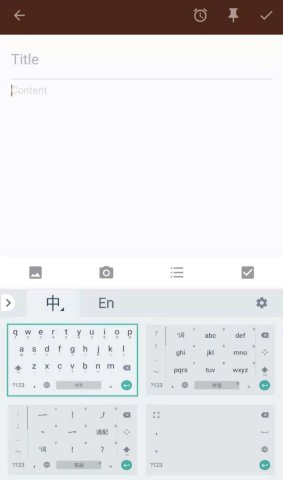
The exact path differs slightly by device, so here are the two most common ones broken out.
On Android (Google Keyboard / Gboard):
- Open Settings and tap General Management (Samsung) or System (stock Android).
- Select Language and Input > On-screen keyboard.
- Tap Gboard (or your default keyboard), then Languages.
- Tap Add keyboard, search for Chinese (Simplified) or Chinese (Traditional), and select your preferred input method (Pinyin is recommended for beginners).
- Tap Done. Switch keyboards anytime by holding the space bar or tapping the globe icon 🌐.
On iPhone (iOS):
- Open Settings > General > Keyboard > Keyboards.
- Tap Add New Keyboard.
- Scroll to Chinese (Simplified) or Chinese (Traditional).
- Choose Pinyin and tap to add.
- Switch keyboards with the globe icon 🌐 while typing.
Different devices will have slightly different keyboard interfaces, but they all work in similar ways.
You can choose between Simplified Chinese and Traditional Chinese keyboards, and the difference matters.
- Simplified Chinese (简体字, jiǎntǐzì) is used in mainland China and Singapore. Characters have fewer strokes and are the standard for HSK exams.
- Traditional Chinese (繁體字, fántǐzì) is used in Taipei, Kaohsiung, and Hong Kong. Characters retain their original, more complex forms.
If you’re learning for Beijing, Shanghai, or Singapore, go Simplified. Studying in Taipei or Kaohsiung? Go Traditional. The Pinyin input method works for both; the difference is only in which character set appears in the suggestion bar.
On the iPhone, it is easy to switch between the two, but on other devices (like mine) it may be a touch more fiddly.
(By more difficult, I mean it takes about 5 seconds instead of 2.)
Once you’ve got your Chinese keyboard, now you can start using it!
Firstly, choose a method that suits you.
The most standard and easy to use method is the Pinyin input method.
You may prefer to use the radical input method, if you are unsure about how to spell the pinyin of the character.
Or, if you’re confident with your handwriting, draw the character with your finger and it will appear as a suggestion.
For typing longer sentences, or generally anything more than a couple of characters, you’ll probably want to stick with the pinyin input method.
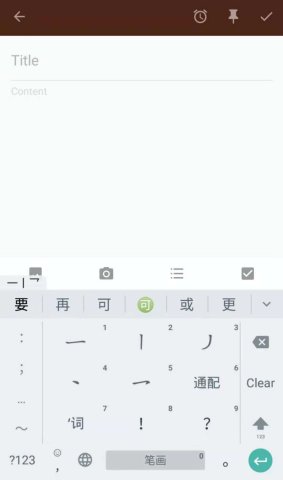
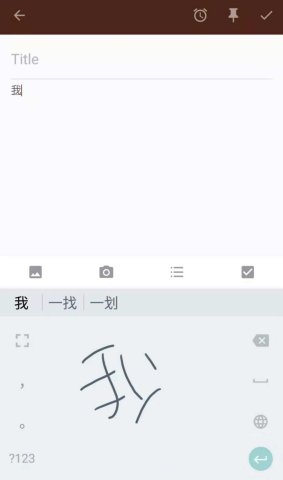
Chinese Keyboard: Choosing the Right Character
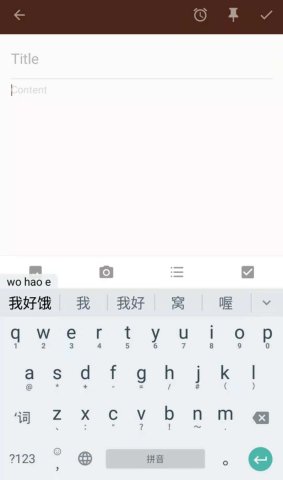
Once you’ve typed your word, phrase, or short sentence into pinyin, it will come up with some character suggestions.
Typing in Chinese pinyin means that there are many characters you can type which may use the same pinyin, but have different tones.
The Chinese keyboard will select characters from those most used, but if you want to select a different one you can use the arrow keys to select a different one, then press space.
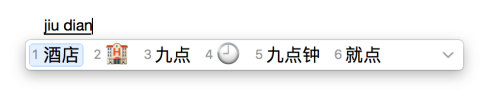
If you’re writing a couple of characters together or a phrase that is often written as one phrase, characters should come up automatically in the suggested box.
How it works in practice:
Let’s say you want to type 中国 (Zhōngguó = China).
- Type zhong, and the input bar will suggest 中 as the top option (alongside 种, 终, 钟, etc.).
- Press Space to confirm 中.
- Type guo, and you’ll see 国 appear (alongside 过, 果, 锅, etc.).
- Press Space again. Done: 中国.
Better still, type zhongguo as one string and most keyboards will jump straight to 中国 as a phrase suggestion. This is phrase-by-phrase input, and it’s much faster once you’re comfortable. 🤔 Not sure which character to pick? The keyboard ranks suggestions by frequency, so the most commonly used character appears first.
For another quick example, take the pinyin ‘jiu dian’. This could mean either hotel or 9 o’clock, so the keyboard will offer both and let you pick.
Or type nǐ hǎo (你好) and you’ll see 你好 appear as the top suggestion in the character bar above the keyboard, just tap it to confirm both characters at once. The keyboard learns from your habits over time, so the more you type, the more accurate its suggestions become.
BONUS || Not 100% sure how a pinyin syllable actually sounds? Practice your Chinese pronunciation with our free Pronunciation Trainer, and nail your tones before you type them. 🎯
Use the arrow keys, your mouse or the numbers on the keypad to select the one you want, then hit space and the character will appear.
There are keyboard shortcuts based on frequency of using the word/phrase you can use, which also work on your mobile device.
As well as being based on general frequency, it is also personalised to your use. See which ones you can find!
Chinese Keyboard shortcuts:
nh = 你好 (ni hao)
wsm = 为什么 (wei shenme)
hjbj = 好久不见 (hao jiu bu jian)
hh = 哈哈 (haha/lol)
bj = 北京 (Beijing)
Chinese Keyboard in Microsoft Word
Good news: if you’ve already set up a Chinese input method on your Windows or macOS system (see above), it works in Microsoft Word automatically. No Word-specific settings needed.
Here’s the workflow:
- Open Word and place your cursor where you want to type.
- Switch to your Chinese input method (Windows key + Space on Windows; Control + Space on Mac).
- Type the pinyin, e.g. type zhong and you’ll see 中 appear as the top suggestion.
- Press Space or Enter to confirm the first suggestion, or use the number keys (1, 2, 3…) to pick an alternative character.
- When you’re done, switch back to English with the same shortcut.
TIP💡 If Word keeps autocorrecting your pinyin to English words, go to File > Options > Proofing > AutoCorrect Options and untick ‘Replace text as you type’.
Other Chinese Input Methods // Beyond Pinyin
Pinyin is the go-to for most learners, but it’s not the only option. Here’s a quick rundown:
| Method | Best for | How it works |
|---|---|---|
| Wubi (五笔) | Advanced users, fast typists | Characters broken into component strokes mapped to specific keys. No romanisation needed, but there’s a steep learning curve. |
| Stroke input (笔画) | Beginners who don’t know pinyin yet | Enter strokes in order (horizontal, vertical, left-falling, right-falling, turning) using number keys. Slow but useful when you know a character’s shape but not its sound. |
| Handwriting input | Anyone with a touchscreen | Draw the character with your finger or stylus. The keyboard recognises it and suggests matches. Great for characters you can write but can’t romanise. |
| Bopomofo (注音) | Traditional Chinese typists | A phonetic system using 37 symbols, widely used in Taipei and Kaohsiung. If you’re studying at LTL Taipei, your classmates will likely use this. |
For most learners starting out, Pinyin is the fastest route in. But knowing these alternatives exist means you won’t be stuck if pinyin fails you.
TIP💡 If you’re studying at LTL in Taipei or Kaohsiung, you’ll encounter Bopomofo regularly, your classmates and teachers will use it daily. It’s worth at least recognising the symbols even if you don’t plan to type with it.
Have you checked out the Taiwanese Mandarin Bopomofo alphabet used to type in Chinese?
Type Chinese Faster // 3 Tips That Actually Help
1. Type whole phrases, not character by character
Instead of typing ni, confirming 你, then typing hao, try typing nihao as one string. Most input methods will surface 你好 immediately. This is called phrase-by-phrase input and it’s how fluent typists operate.
2. Use fuzzy pinyin if you’re unsure
Confusing zh/z, ch/c, sh/s, or n/l? Some keyboards (including Sogou Pinyin, popular in mainland China) offer a fuzzy pinyin mode that accepts common mix-ups and still finds the right character. Turn it on in your keyboard’s settings.
3. Let predictive text do the work
After you confirm a character or phrase, your keyboard will predict what comes next based on common patterns. The more you type in Chinese, the smarter those predictions get. Trust it, especially for set phrases like 谢谢 (xièxiè = thank you) or 没问题 (méi wèntí = no problem).
Ready to put that keyboard to real use? Find your perfect Mandarin program and start typing, and speaking, Chinese with native-speaker teachers at LTL.
Think you’ve cracked typing in Chinese?

BONUS – Our Chinese Keyboard
Want your own Chinese Keyboard?
You’re in the right place, we’ve developed this super useful keyboard where you can type Chinese Pinyin with tones.
Like what you’ve seen?
Why not take your language learning even further and check out our complete guide to typing in Japanese and also Korean as well!
How to Use a Chinese Keyboard – FAQ’s
Is there any alphabet in Chinese?
No there is not.
Chinese is built through characters which you must memorize.
As you learn more Chinese, they begin to make logical sense, but the key is simply remembering the word, not the alphabet as with other languages.
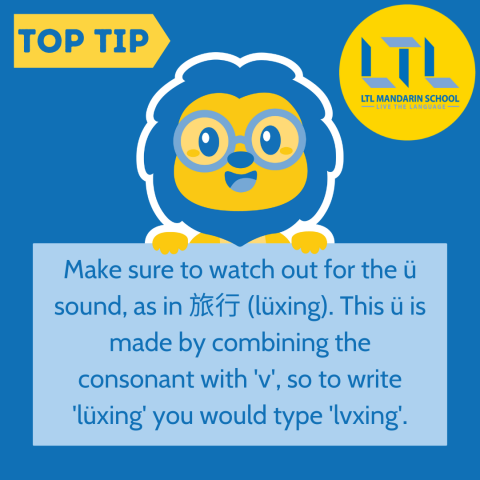
How do I type the character ü in Chinese on my phone?
For ü (let’s use the example “to travel”, lüxing) you would need to type lvxing.
The ü is typed using the letter v.
How do I add a Chinese keyboard to my Apple device?
On Apple systems:
Click the flag in the top right-hand corner
Go to “open keyboard preferences”
Click “add”
Choose your keyboard!
How do I add a Chinese keyboard to my Windows device?
On Windows systems:
Press the Windows button.
Go to settings – change PC settings – time and language – region and language
Click “add a language”, and choose your keyboard. (i.e. Chinese simplified or Chinese traditional)
Is there somewhere I can practice using Chinese characters in conversation?
Absolutely! You can join our Chinese language learning community on Discord and practice typing (and chatting away!) in simplified and traditional Chinese.
How to speak “I love you” in Mandarin?
“I love you” in Mandarin Chinese is 我爱你 (wǒ ài nǐ).
To type it on a Chinese keyboard, switch to your Pinyin input, type woaini as one string, and 我爱你 will appear as the top phrase suggestion. Press Space to confirm.









8 comments
[…] How to Use Chinese Keyboard: Typing in Chinese […]
[…] more you practice typing or writing Chinese characters, the easier you will […]
I have an Android phone do you have a recommendation of the best Chinese keyboard to install?
Hi Laurence,
There are lots of keyboards which you can download which have a Chinese keyboard, so it's really up to you. However, we think the Gboard keyboard by Google is a particularly good one. Hope that helps!
Thanks, The LTL Team
how do i do it on a coumputer with only taiwan type how do i type then
Hi Alex,
Do you mean that you wish to write in traditional Chinese like they use in Taiwan? To do this you simply need to select Mandarin Chinese Traditional. The pinyin to input characters is the same for both simplified and traditional Chinese.
We hope that helps!
Thanks, The LTL Team
[…] How to Use Chinese Keyboard (Including FREE Keyboard) […]
[…] https://ltl-beijing.com/how-to-use-chinese-keyboard/ […]